
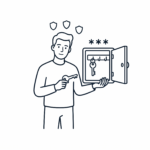
Category: Digital Safety

The digital world can often feel like a bit of a minefield, packed with endless password rules, baffling pop-ups, and clever tricksters trying to catch you out. But you shouldn’t have to hide away from technology just to stay safe.

In this section, we strip away the confusing technobabble to give you plain, practical advice on online security, mobile phone scams, and privacy settings. Consider this your jargon-free guide to spotting digital pickpockets, locking down your personal information, and confidently protecting your hard-earned pennies. You’ve spent a lifetime outsmarting troublemakers in the real world—the digital one is no different.

  • From Notebook to Digital Vault: How to Safely Move Your Passwords Without the Stress

    Password Safety

    In our last guide, we looked at why moving away from scratched-out notebooks and predictable passwords is the single best thing you can do to protect your online identity.

    If you decided to take the plunge—whether you chose a brilliant free vault like Bitwarden or went for the fully automated premium comfort of 1Password—you are probably looking at your trusty old paper notebook and thinking: “Right, how on earth do I get all of this in there without breaking the internet?”

    Take a deep breath. You do not need to be a computer wizard to do this, and you certainly do not have to do it all in one afternoon.

    Grab a cup of tea, find a pack of your favourite biscuits, and let’s walk through this gentle, step-by-step transition together.

    The Golden Rule: The “Bit-by-Bit” Strategy

    The biggest mistake people make is trying to transfer fifty passwords in one sitting. It is a one-way ticket to a headache.

    Instead, treat this like clearing out a cluttered garage: do it in small, manageable chunks. We recommend transferring just three to five passwords a day. Within a fortnight, your digital vault will be completely set up, and you won’t have lost your sanity in the process.

    Step 1: Create Your “Master Key”

    Before you type a single login into your new digital vault, you need to create your Master Password. This is the single password you will use to unlock your digital filing cabinet every day. Because it guards everything else, it needs to be strong, but it must be something you can actually remember.

    💡 The Easy Trick for a Strong Master Key:

    Instead of trying to remember a random jumble of numbers and letters, think of a Passphrase. Pick three or four completely random, unrelated words and string them together.

    For example: ElephantTeapotCarpetBiscuit

    It is incredibly easy for your human brain to picture an elephant drinking tea on a carpet, but it is mathematically impossible for a hacker’s computer to guess it.

    Important Note: For this one specific password, you absolutely should write it down on a neat piece of paper. Keep this paper at home, locked away safely in a secure drawer or safe box. If you lose your Master Key, the security on these vaults is so high that even the company itself cannot reset it for you.

    Step 2: Start with the “Big Three”

    When you are ready to begin transferring, open your old paper notebook. Ignore the low-stakes websites for now (like that online shoe shop you used once in 2022). We want to start with the accounts that matter most to your security:

    1. Your Primary Email Account: This is the golden gateway. If someone gets into your email, they can request password resets for all your other accounts. Protect this first.
    2. Your Online Banking / Financial Portals: Where your hard-earned money lives.
    3. Your Main Household Utilities: Your gas, electricity, and broadband accounts.

    Open your new digital vault app on your computer, tablet, or phone, click the little [+] or “Add Item” button, and type in the website address, your username, and the current password from your notebook. Hit save.

    Step 3: Let the Vault Modernise Your Passwords

    Once your old password is safely inside the vault, it is time to upgrade it. If your current password for your electricity bill is something simple like Rover123, it needs to change.

    1. Log into your utility website using your old password.
    2. Go to their settings page and look for “Change Password”.
    3. Inside your new digital vault app, look for the tool called the Password Generator.
    4. Click it, and the vault will instantly invent a completely unique, unhackable code for you (something like xK9#pL!2wQ).
    5. Save this new code in your vault, paste it into the utility website, and click save.

    From this moment on, you never have to remember that complicated jumble of characters ever again. Next time you visit that website, your vault will automatically type it in for you.

    Step 4: The “As You Go” Method

    Once the “Big Three” are safely inside your digital vault, you can stop typing things in manually. For the rest of your accounts, simply use the “As You Go” method:

    • Keep your old paper notebook next to your computer for the next couple of weeks.
    • Whenever you naturally need to log into a website to buy something or check an account, look up the password in your notebook one last time.
    • Once you type it in, your new digital vault will pop up with a polite message saying: “I noticed you logged in. Would you like me to save this for you?”
    • Click Yes.

    Just like that, your vault will build itself up automatically in the background while you go about your normal daily life.

    Step 5: What to Do with the Old Notebook?

    Once your digital vault is full and doing all the heavy lifting, do not immediately run out to the garden and throw your old address book into the bonfire.

    Keep the notebook in a secure drawer for at least three months. This acts as your safety net just in case you forgot an obscure account (like your online lottery login or a specialist hobby site).

    Once you are completely confident that everything has been transferred, you can safely destroy the old paper pages.

    Congratulations! You have officially moved out of the analogue world and into a modern, unhackable digital fortress. Your financial assets, identity, and data are now safer than they have ever been.
  • The Hidden Risks of Free VPNs: What You Need to Know

    VPN Shield

    We all love a good bargain, and when it comes to protecting our privacy online, a “Free VPN” sounds like a no-brainer. Virtual Private Networks (VPNs) are excellent tools for shielding your internet activity from prying eyes. But when a premium security service costs absolutely nothing, it’s time to ask an important question: How are they paying their global server bills?


    The truth is, running a network of secure, lightning-fast servers costs thousands of pounds a month. If a free VPN company isn’t charging you a subscription fee, they are making their money elsewhere—often at the direct expense of your security.

    Here are the hidden dangers you should know about before hitting that download button.


    1. “If It’s Free, You Are the Product”

    Paid VPN providers make money from subscription fees. Free VPNs, however, often track your browsing habits, the websites you visit, and your shopping preferences. They package this data up and sell it to third-party advertising networks. Instead of shielding your privacy, a free VPN can inadvertently turn into a corporate tracker monitoring your digital footprint.

    2. The Danger of “Bandwidth Mules”

    This is the most alarming hidden risk discovered by security researchers. Some completely free, unlimited VPNs insert a clause into their massive terms and conditions that allows them to sell your home internet bandwidth.

    While you are using their app, they turn your computer into an “exit node” for other users. This means strangers halfway across the world could be routing their internet traffic through your home network. If they do something illegal online, it will look to the authorities like it came directly from your house.

    3. Outdated Security & Intrusive Ads

    A good VPN requires constant updates to fight off modern scams and hacking attempts. Many free providers rely on weak, outdated encryption or contain security loopholes. Furthermore, they bombard your screen with aggressive advertisements. If you accidentally click on one of these intrusive pop-ups, you risk downloading malware or landing on a sophisticated phishing site.


    The Safe Alternative: Invest in Real Privacy

    If you want genuine digital safety without your private data being sold or your home bandwidth being hijacked, investing a few pounds a month into a highly reputable, independently audited service is worth every penny.

    For a rock-solid, premium provider that we trust to keep our internet connection private, we highly recommend NordVPN. It offers military-grade encryption, lightning-fast speeds, a strict “no-logs” policy, and active threat protection to stop scam sites in their tracks.

    Our searchable WiseOldHeads library is packed with helpful advice, jargon-free consumer guides designed specifically to protect your cash and your peace of mind. Leverage our search bar below to stay one step ahead of the corporate giants.

  • The “Hi Mum” Text Scam: How to Spot a Digital Pickpocket

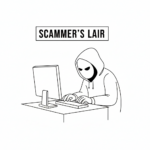
    ScammerLiar at a desk

    There is a universal law of nature that applies to all children and grandchildren: they are absolutely brilliant at losing things. Keys, coats, umbrellas, boundaries—they will misplace all of them.

    So, when a text message pops up on your mobile phone out of the blue saying, “Hi Mum, I’ve dropped my phone down the loo and it’s completely broken. I’m texting you from a friend’s mobile,” your brain doesn’t immediately think “Scam.” Your brain thinks, “Yes, that sounds exactly like something they would do.”

    It is a text message that preys entirely on our instinct to protect our family. But behind that innocent-sounding message isn’t a clumsy relative—it is a digital pickpocket sitting in a dark room, waiting to empty your bank account.

    The “Hi Mum” or “Hi Dad” scam is one of the most common frauds in the UK today. Fortunately, it is also incredibly easy to defeat once you know the dead giveaways.

    How the Trap Snaps Shut

    The scammer starts with that simple message about a broken phone to explain why they are texting you from an completely unrecognized number.

    If you reply with something loving like, “Oh no, darling! Are you okay?” the trap is set. They now know they have an empathetic, trusting person on the line.

    Over the next few messages, they will spin a stressful yarn. They will tell you they are trying to set up their new phone, but their online banking has been locked out. Then comes the sucker punch: “I have an urgent bill that needs paying today, but I can’t access my app. Could you pay it for me? I’ll transfer the money back to you tomorrow morning, I promise.”

    Because you think you are helping your own flesh and blood out of a tight spot, your guard drops, the money is sent, and the fraudster vanishes into thin air.

    🔎 The Three Dead Giveaways

    Fraudsters are clever, but they are also incredibly lazy. If you look closely at these text conversations, they almost always drop three massive clues:

    1. The Sudden Lack of Personality

    Scammers send these messages out to thousands of people at once using automated software. Because of this, the messages have to be completely generic. They won’t use your name, and they won’t use the specific nickname your child usually calls you. If your son has called you “Ma” for thirty years, and suddenly sends a text saying “Hi Mother,” your alarm bells should be ringing.

    2. Extreme Urgency

    The bill is always due in the next twenty minutes. The car mechanic is always threatening to lock the car away. Scammers use artificial panic to stop you from pausing and thinking rationally.

    3. The Text-Only Rule

    If you ask to ring them on this “new number” to check they are okay, they will always have an excuse. “My microphone is broken,” or “I’m in a quiet office and can’t talk.”

    🛡️ The Golden Rule: The “Circuit Breaker”

    If you ever receive a message like this, you don’t need to panic, and you don’t need to feel old or out of touch. You just need to employ a simple “circuit breaker” to ruin the scammer’s day.

    The Golden Rule: Never, under any circumstances, send money to a “new number” until you have spoken to that relative on their old, original phone number or heard their actual voice.

    Even if they claim their old phone is dead or at the bottom of a toilet, pick up your phone and dial their regular number anyway. Nine times out of ten, your actual child will answer the phone sitting comfortably on their sofa, completely oblivious to the drama, and confirms they haven’t lost a thing.

    Alternatively, ask a security question that only your real relative would know. Ask something like, “Oh dear! Did you lose the green handbag I gave you for Christmas?” (Even better if you’ve never bought them a handbag in your life). If it’s a scammer, they will guess and say “Yes, unfortunately!”—and you can happily block the number knowing you’ve won the round.

    The Bottom Line

    Technology has changed, but human nature hasn’t. Scammers aren’t using complex wizardry to hack into your computer; they are just using old-fashioned trickery to play on your kindness.

    By keeping your wits about you, ignoring the artificial panic, and insisting on hearing a real human voice before you touch your bank card, you can keep your money exactly where it belongs: safely in your own pocket.

    Our searchable WiseOldHeads library is packed with helpful advice, jargon-free consumer guides designed specifically to protect your cash and your peace of mind. Leverage our search bar below to stay one step ahead of the corporate giants.

  • Never Click “Forgot Password” Again: The Magic of Digital Password Managers

    We have all been there. You need to log in to your online banking, utility provider, or favorite retail store, only to be met with the dreaded message: Incorrect Password. You pause, try two or three variations of your childhood pet’s name combined with a birth year, and get locked out anyway. Frustrated, you hit the “Forgot Password” button, wait for the reset email, and repeat the entire stressful loop a few weeks later.

    The modern internet demands that we remember dozens of different passwords. To cope, most of us break the number one rule of cybersecurity: we reuse the same simple password across multiple websites.

    If you want to permanently end password frustration while locking down your digital security, it is time to meet your new best friend: the digital password manager. Tools like Bitwarden and RoboForm act as an encrypted, secure vault that manages the chaos for you. Here is how they work and why they are an absolute game-changer.

    1. You Only Ever Have to Remember One Password

    A password manager is essentially a highly secure digital safe that installs right onto your computer, phone, or web browser. It stores all your usernames and passwords behind a single lock.

    Instead of memorizing fifty different combinations, you only need to remember one strong “Master Password” to unlock the vault. The moment you unlock it, the software handles the rest.

    2. One-Click Autofill Saves Your Time

    Once your accounts are saved in your vault, you will never have to type a password again. When you visit a website—say, your online grocery account—the password manager automatically recognizes where you are.

    With a single tap or click, it securely populates your username and password into the blanks and logs you in instantly. It turns a frustrating multi-step chore into a seamless, one-second task.

    3. It Automatically Generates Unhackable Passwords

    When you create a new account online, or update an old one, a password manager removes the guesswork. With a single click, it can generate a completely random, military-grade password for you (something like $k9!mP2#zX9q).

    Because the app is memorizing it for you, it doesn’t matter that the password looks like random gibberical code. It is entirely unhackable by automated cyber-scams, keeping your financial and personal data safe.

    4. Built-In Protection Against Fake Scam Websites

    This is a brilliant hidden safety feature that many people don’t know about. Cybercriminals are experts at creating fake websites that look exactly like your bank or Netflix login screen to trick you into entering your details (a tactic known as phishing).

    Human eyes are easily fooled by these lookalikes, but a password manager cannot be tricked. It matches your stored passwords to the exact web address. If you accidentally click a scam link and land on a fake banking page, your password manager will refuse to autofill your details because it detects that the domain name is wrong. It acts as an automated safety net against fraud.

    Which One Should You Choose?

    While there are many options on the market, we lean toward two highly respected, reliable providers:

    • Bitwarden: Renowned for its world-class security, it is completely open-source (meaning independent experts constantly audit it for bugs) and offers an incredibly generous, fully functional free version that works seamlessly across all your devices.
    • RoboForm: One of the longest-running and most user-friendly password managers on the planet. It is particularly brilliant at handling complex online forms, making it a fantastic choice if you want something straightforward and easy to navigate.

    Take Control of Your Digital Security

    Moving your passwords into a digital manager takes a tiny bit of getting used to, but once you experience the freedom of never resetting a password again, you will wonder how you ever lived without it.

    👉 [To find the official setup links and read more about our favorite digital safety tools, step inside The Tool Shed.]

    Our searchable WiseOldHeads library is packed with helpful advice, jargon-free consumer guides designed specifically to protect your cash and your peace of mind. Leverage our search bar below to stay one step ahead of the corporate giants.